Integrate Thesean With Cursor
Set up Cursor to use supported Ship models through Thesean.
Ensure you have your Thesean API key from the Thesean Dashboard before continuing.
Prerequisites
- Ensure you have Cursor installed. See cursor.com/downloads for installation instructions.
Setup Steps
Step 1: Open Cursor Settings
Navigate to Cursor > Preferences > Cursor Settings.
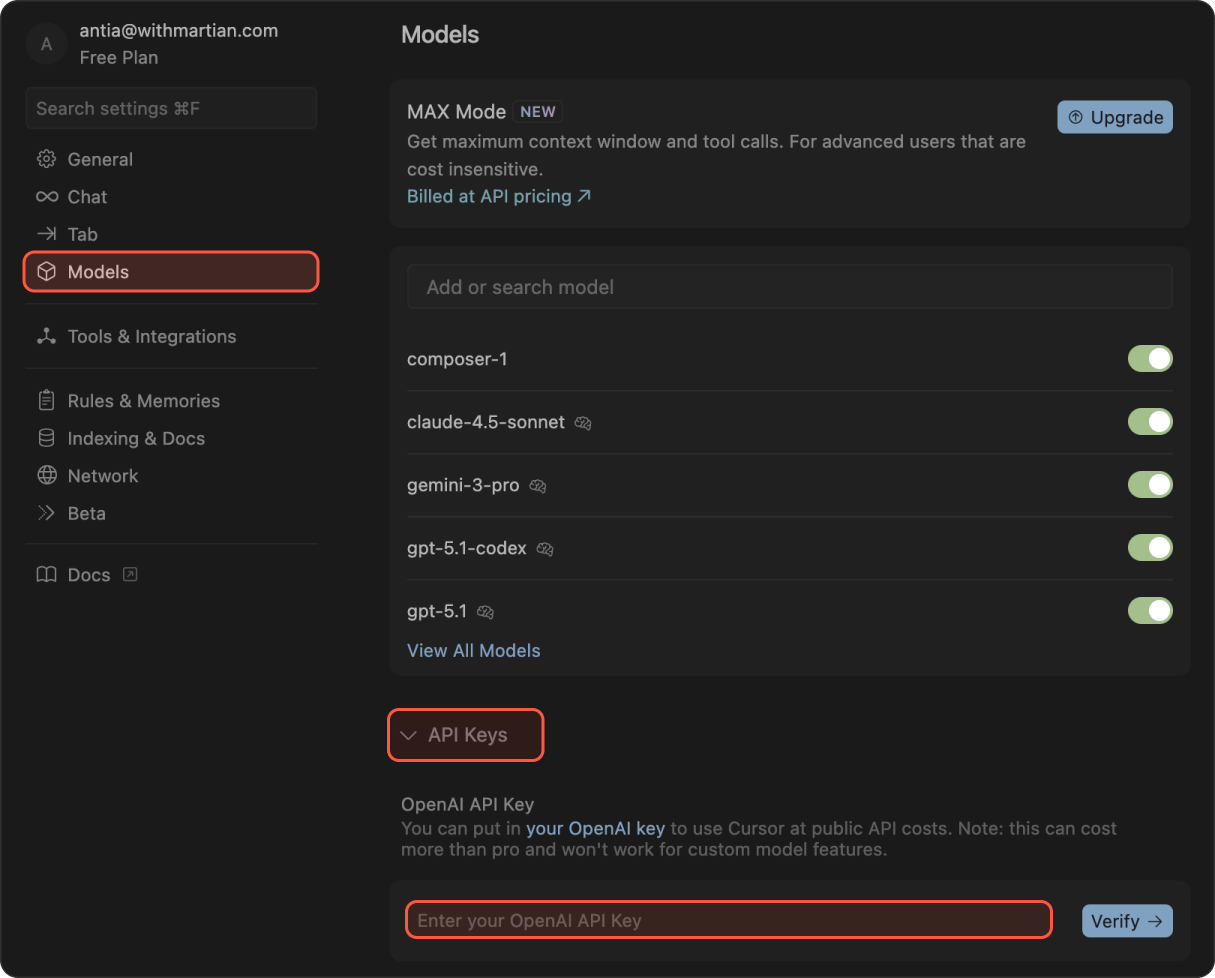
Step 2: Configure API Key
- Navigate to Models and expand API Keys.
- Enter your Thesean API key and click Verify.
Step 3: Configure Base URL
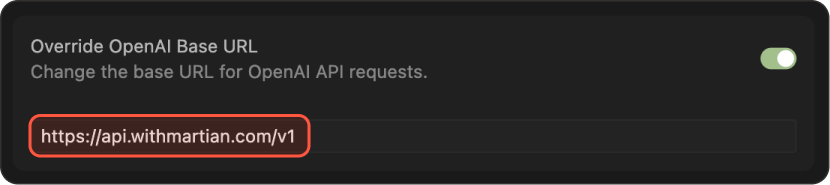
- Toggle Override OpenAI Base URL.
- Enter
https://api.thesean.ai/v1.
Cursor uses an OpenAI-labeled setting for custom API endpoints. Keep this required setting while selecting a supported Ship model below.
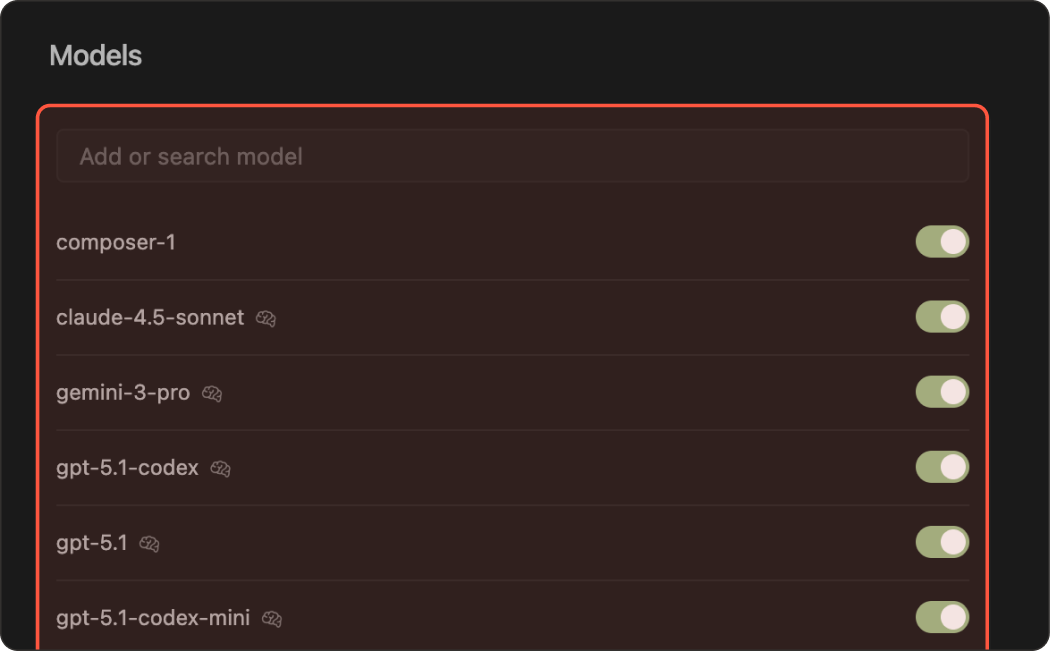
Step 4: Enable Models
Add and enable the Ship models you want to use:
ship-like/gpt-5.6-solship-like/claude-opus-4-8ship-like/claude-sonnet-5ship-like/claude-haiku-4-5
See Available Models for the complete list of supported Ship models.
Step 5: Test the Integration
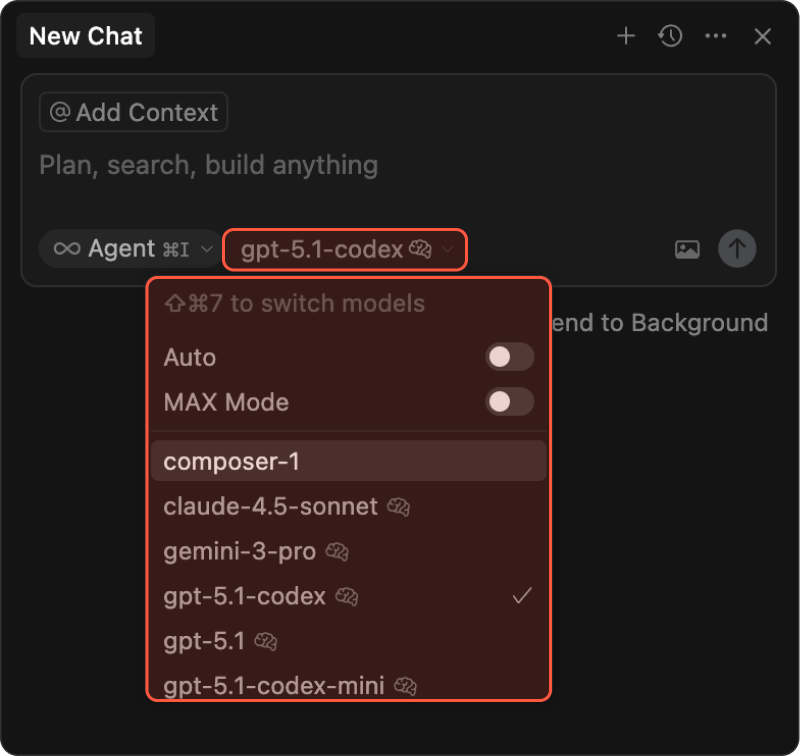
- Open the chat interface (on Mac ⌘ + ⇧ + I).
- Select the model you have just enabled.
- Press Enter to start chatting.
You can now use Thesean to route commands as your AI assistant in Cursor.